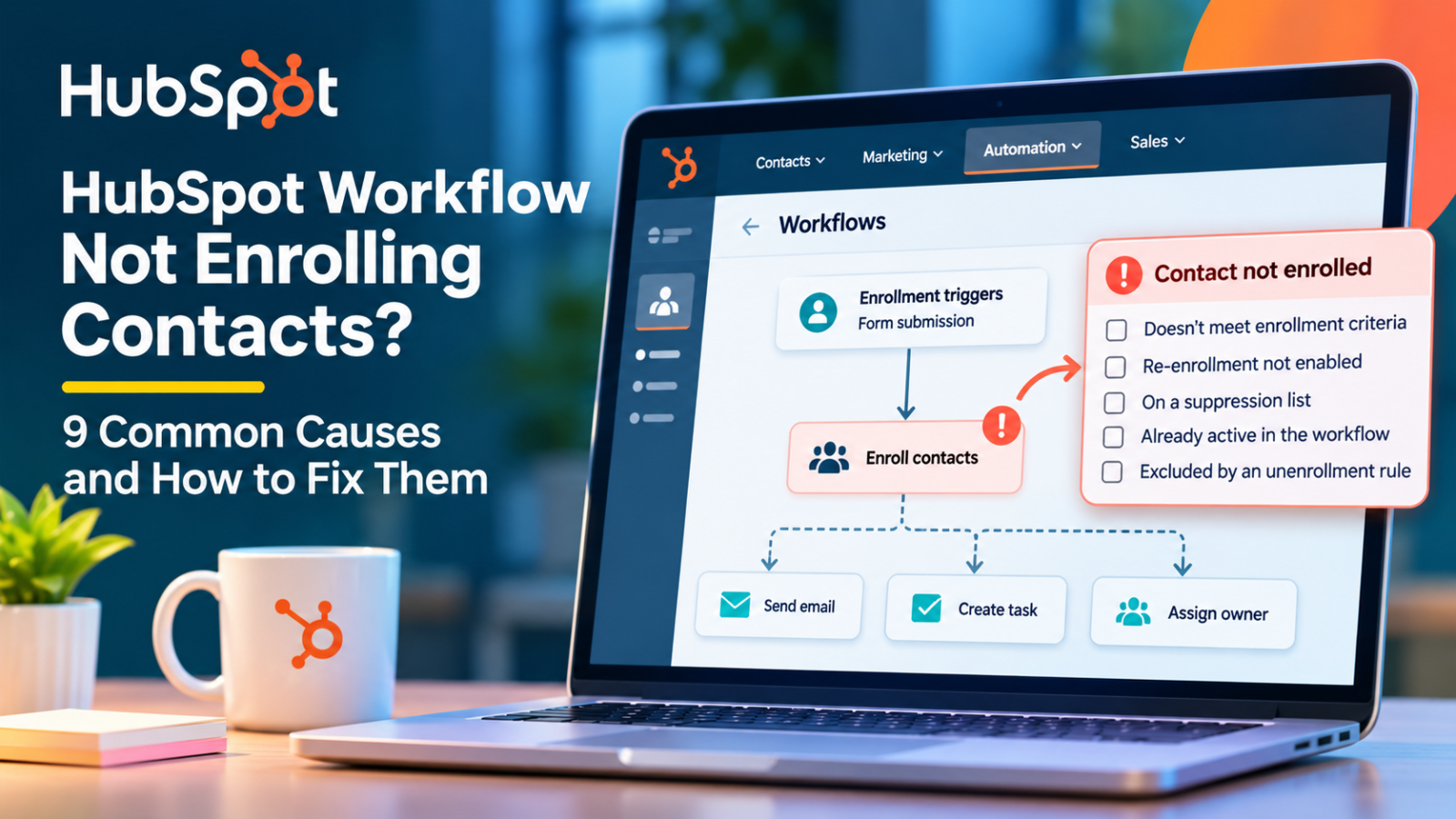
HubSpot Workflow Not Enrolling Contacts? 9 Common Causes and How to Fix Them
Affiliate Disclosure: We review products independently. When you buy through our links, we may earn a commission or a compound recurring commission at zero extra cost to you. Read our editorial policy.
You have created a workflow in HubSpot, configured the enrollment triggers, and turned it on. But the contacts you expected to enter the workflow are not showing up.
Sometimes, the workflow appears to be working, but certain contacts are skipped. In other cases, a contact enters the workflow once but does not re-enter when the same conditions are met again.
These problems can be frustrating, particularly when the workflow handles important business activities such as lead assignment, sales follow-ups, customer onboarding, or email communication.
The good news is that a workflow that does not enroll contacts is not necessarily broken. HubSpot uses specific enrollment rules, re-enrollment settings, suppression criteria, and record conditions that determine whether a contact qualifies.
This guide explains nine common reasons HubSpot workflows fail to enroll contacts, how to diagnose each issue, and what to check before rebuilding your automation.
First, Understand the Difference Between Enrollment and Workflow Errors
Before troubleshooting, it is important to identify where the problem occurs.
A HubSpot workflow generally involves two separate stages:
Enrollment: HubSpot determines whether a record meets the conditions required to enter a workflow.
Execution: After enrollment, HubSpot processes the workflow actions, such as sending an email, updating a property, creating a task, or assigning a record.
These are different stages, and their problems require different solutions.
| Problem | What It Means |
|---|---|
| Contact is not enrolling | The record has not entered the workflow |
| Contact was previously enrolled | The record has entered before but is not entering again |
| Contact enrolls and immediately exits | An unenrollment, suppression, or goal condition may apply |
| Contact enrolls but an action fails | The workflow started, but an individual action encountered an error |
| Contact is enrolled but nothing happens immediately | The workflow may be processing a delay or scheduled action |
If the contact never entered the workflow, start with enrollment troubleshooting. If the contact entered but an action failed, inspect the workflow’s action logs instead.
How to Diagnose Why a Contact Did Not Enroll
HubSpot provides a troubleshooting feature that can help identify why a particular record did not enter a workflow.
Instead of changing enrollment triggers immediately, use this feature first.
Step 1: Open the Workflow
In your HubSpot account:
- Navigate to Automation > Workflows.
- Open the workflow you want to investigate.
- In the upper-left area of the workflow editor, select Help.
- Click Troubleshoot enrollment.
The exact navigation can vary with account permissions and interface changes.
Step 2: Select the Contact
In the troubleshooting panel, select the contact that you expected to enter the workflow.
Step 3: Set the Date and Time Range
Choose the period during which the contact was expected to enroll.
This helps HubSpot examine the relevant enrollment activity rather than unrelated events.
Step 4: Review the Result
Check the information HubSpot provides about the contact’s enrollment eligibility.
If the tool does not have sufficient enrollment data, test the contact against the workflow’s enrollment triggers.
Note that HubSpot’s troubleshooting tool supports specific filter types, including property, list, and form-submission filters. It does not necessarily diagnose every possible enrollment scenario.
If the problem remains unclear, review the contact’s activity timeline and the workflow’s enrollment history.
With that initial check complete, work through the following common causes.
9 Reasons HubSpot Workflows May Not Enroll Contacts
1. The Contact Does Not Meet the Enrollment Triggers
<badge color=”success”>Check this first</badge>
One of the most common reasons a contact does not enter a workflow is that it does not satisfy the configured enrollment conditions.
For example, imagine a business has created a workflow with these conditions:
- Lifecycle stage is Lead.
- Lead source is Website.
If the workflow uses AND logic, a contact must satisfy both conditions to qualify.
A contact with a Lead lifecycle stage but a lead source of Referral will not qualify.
This becomes particularly important when workflows contain several filters or combinations of AND and OR conditions.
How to fix it:
- Open the workflow.
- Review the enrollment triggers.
- Check each property and its configured value.
- Examine the AND and OR operators.
- Compare the conditions against the actual contact record.
- Use the workflow’s testing feature to check whether the record meets the criteria.
Remember:
- AND means all specified conditions must be satisfied.
- OR means at least one qualifying condition or condition group must be satisfied.
A small change in the filter logic can significantly alter which contacts enter a workflow.
2. Existing Contacts Were Not Included When the Workflow Was Turned On
This is another common source of confusion.
Suppose you create a workflow that enrolls contacts whose lifecycle stage is Lead.
At the time of activation, your CRM already contains 500 contacts that meet this condition.
However, while publishing the workflow, you select the option to enroll only records that meet the enrollment criteria after the workflow is turned on.
In this situation, HubSpot will not automatically enroll all 500 existing contacts.
The workflow will primarily look for records that meet the relevant conditions going forward.
This is particularly important when activating a new workflow for an existing contact database.
How to fix it:
- Open the workflow and review its enrollment settings.
- Check the option selected when the workflow was published.
- Review the workflow’s version history if necessary.
- If eligible existing contacts need to enter, use the appropriate manual or bulk enrollment option.
HubSpot allows eligible records to be manually enrolled, subject to workflow settings and restrictions.
Important: Do not change the enrollment setting without considering the impact. Enrolling an entire existing contact database could trigger emails, notifications, or other actions that were originally intended only for new contacts.
3. Re-Enrollment Is Not Enabled
By default, HubSpot does not repeatedly enroll the same record every time it meets the original enrollment criteria.
A contact generally enters a workflow the first time it qualifies, unless the workflow has been configured to allow re-enrollment.
Consider this example.
A marketing agency creates a workflow that sends a follow-up email when a contact submits a consultation form.
A prospect submits the form and enters the workflow.
Several weeks later, the same prospect submits the form again.
The contact may not enter the workflow a second time if the relevant re-enrollment settings have not been configured.
How to fix it:
- Open the workflow editor.
- Select Edit and then Edit enrollment trigger.
- Open the Settings tab.
- Locate the re-enrollment settings.
- Enable re-enrollment for the appropriate triggers.
- Save and review the workflow.
The exact re-enrollment conditions available depend on the trigger type.
For example, if the workflow is intended to run whenever a particular form is submitted, configure the relevant form-submission event as a re-enrollment trigger where supported.
Do not enable re-enrollment indiscriminately. A contact repeatedly meeting a broad property condition could enter a workflow more often than intended.
4. The Contact Is on a Suppression List or Meets an Unenrollment Condition
A contact may meet the enrollment criteria and still be prevented from entering a workflow.
This can happen when the record belongs to a configured suppression list or meets an applicable unenrollment condition.
For example, a business may have created a lead-nurturing workflow for new enquiries but excluded:
- Existing customers.
- Contacts who have requested no further marketing communication.
- Contacts already being handled through a separate process.
- Contacts who have completed a defined conversion goal.
If a contact falls into an exclusion group, HubSpot may prevent enrollment or remove the contact from the workflow, depending on the configured settings.
How to fix it:
- Open the workflow.
- Review the enrollment and suppression settings.
- Check the suppression lists or segments.
- Review the unenrollment criteria.
- Verify whether the contact belongs to an excluded segment.
- Adjust the rules only if the contact should legitimately qualify.
Do not remove suppression rules simply to force a contact into a workflow. These rules may exist to prevent inappropriate communication or conflicting automation.
5. The Workflow Is Not Turned On
This sounds obvious, but it is worth checking.
A workflow can be created and configured without being activated.
A workflow in draft or inactive status will not automatically enroll records.
Similarly, editing an existing workflow does not necessarily mean the revised version has been published.
How to fix it:
- Open the workflow.
- Check its activation status.
- If it is not active, select Review and publish.
- Review the enrollment criteria and settings.
- Confirm the publication and activation.
Before turning on the workflow, verify whether existing contacts should be included.
This is especially important for workflows that send emails or initiate customer-facing actions.
6. The Contact Was Previously Enrolled and Is Still Active in the Workflow
A contact that is already enrolled cannot simply enter the same workflow again while its existing enrollment is active.
For example, a prospect enters a seven-day follow-up workflow.
On the third day, the contact meets another enrollment condition.
The record may not start a second instance of the same workflow while its original enrollment is still active.
This is different from a completed enrollment where re-enrollment has not been enabled.
How to fix it:
- Open the workflow’s details.
- Review its enrollment history.
- Search for the contact.
- Check whether the contact is currently active.
- Review the remaining workflow actions and any delays.
If the contact is still active, determine whether the existing workflow should finish or whether the workflow design needs to be changed.
Avoid manually removing contacts from workflows simply to make them eligible again. Doing so may interrupt actions that are still required.
7. The Contact Was Merged With Another Record
Contact merging can also affect workflow enrollment.
When two HubSpot contact records are merged, the primary record and secondary record may have different workflow histories.
By default, HubSpot does not automatically enroll merged contacts merely because the updated record meets the workflow’s enrollment conditions, unless the relevant setting is enabled.
The primary record may also remain active in a workflow after the merge.
This can create confusion when a user expects the merged record to behave like a newly created contact.
How to fix it:
- Check whether the contact was recently merged.
- Review the primary record’s activity timeline.
- Check whether the primary record is already active in the workflow.
- Review the workflow’s merged-record enrollment setting.
- Enable automatic enrollment of eligible merged records only if that behaviour is appropriate for the workflow.
This issue is particularly relevant for businesses that regularly import contacts or consolidate duplicate CRM records.
8. The Enrollment Criteria Use Date or Property Conditions Incorrectly
Not all enrollment conditions behave in the same way.
For example, a workflow may use a date property with a condition such as:
- Date is more than seven days ago.
- Date is less than three days ago.
- Property is known.
- Property is unknown.
These filters can produce unexpected results if the property is empty, updated later than expected, or evaluated according to a schedule.
HubSpot notes that certain date-property filters using relative conditions are checked at the start of the day. This can cause an apparent delay in enrollment.
Property availability can also affect enrollment.
For instance, a contact may be created before an automatically populated property has received its final value.
If the workflow evaluates that property too early, the contact may qualify or fail to qualify unexpectedly.
How to fix it:
- Check the actual value stored in the contact property.
- Verify the property type and filter condition.
- Review whether the condition is date-based or event-based.
- Check whether the property is populated immediately or updated later.
- Consider a short delay before subsequent actions when the workflow depends on automatically populated data.
- Review the workflow’s unenrollment settings if records should exit when their properties change.
For important workflows, use event-based triggers when the business requirement is to respond to a specific event rather than a property simply having a particular value.
9. The Contact Is Being Enrolled and Then Immediately Unenrolled
Sometimes the issue is not that HubSpot failed to enroll the contact.
The contact may have entered the workflow but immediately met a condition that caused it to leave.
Possible reasons include:
- The contact meets the workflow goal.
- The contact belongs to a suppression list.
- The contact meets an unenrollment trigger.
- The contact is enrolled in another workflow that has been configured to unenroll it from this one.
For example, a business may have a lead-nurturing workflow that automatically removes contacts once they become customers.
If a contact’s lifecycle stage changes to Customer at the time of enrollment, the record may be removed immediately.
How to fix it:
- Open the workflow’s enrollment history.
- Find the relevant contact.
- Review the enrollment and unenrollment events.
- Check the goal and suppression settings.
- Review any connections with other workflows.
- Modify the rules only if the current behaviour does not match the intended process.
The key is to identify whether the contact was never enrolled or whether it entered and then exited.
Those are two different problems.
What If a Contact Enrolls but the Workflow Action Fails?
If a contact has successfully entered a workflow but an action has not completed, the problem is no longer an enrollment issue.
You need to inspect the workflow’s execution history and action logs.
Here are three situations worth checking.
A. The Email Action Was Skipped
HubSpot’s workflow email actions can be restricted by marketing-contact status.
For example, a workflow may successfully enroll a non-marketing contact but skip the Send email action because the contact is not eligible for that action.
The workflow may continue executing its remaining actions even when the email step is skipped.
What to check:
- Contact’s marketing-contact status.
- Email subscription status and applicable communication permissions.
- Workflow action logs.
- Whether the workflow was designed to email only eligible marketing contacts.
Do not automatically change every contact to marketing status to resolve this issue. Review the business requirement and associated subscription costs first.
B. A Contact Creation Action Fails
Suppose a workflow attempts to create a new contact using information from a form submission or another connected system.
If the contact already exists, the action may fail rather than create another duplicate record.
This can also affect subsequent actions that depend on the newly created record.
What to check:
- Whether the contact already exists.
- Whether the workflow should update an existing record instead.
- Whether an association needs to be created.
- Whether the workflow has appropriate branching logic.
A better design may be to check whether the record exists before deciding whether to create a new contact or update an existing one.
C. An Action Is Delayed or Retried
Not every action that does not execute immediately is necessarily broken.
Some workflow actions may be delayed by scheduling rules, processing limits, or temporary errors.
HubSpot distinguishes between error logs that require attention and information logs that may be retried automatically.
What to check:
- Action execution history.
- Error messages.
- Delay and scheduling settings.
- Whether the action is waiting for a condition.
- Whether the workflow has automatically retried the action.
Use the error message to identify the specific problem instead of assuming that the entire workflow needs to be rebuilt.
A Practical HubSpot Workflow Troubleshooting Checklist
If you are still unable to identify the problem, work through this checklist before making major changes.
| Check | What to Verify |
|---|---|
| Workflow status | Is the workflow active? |
| Enrollment criteria | Does the contact meet every required condition? |
| AND/OR logic | Are the filters configured correctly? |
| Existing records | Were existing contacts included at activation? |
| Re-enrollment | Is re-enrollment enabled for the relevant trigger? |
| Suppression | Is the contact excluded by a suppression list? |
| Unenrollment | Does the contact meet an exit condition? |
| Enrollment history | Was the contact enrolled previously? |
| Active enrollment | Is the contact already active in the workflow? |
| Merged records | Was the contact created through a merge? |
| Property values | Are the relevant fields populated correctly? |
| Action logs | Did an action fail after enrollment? |
Working through these checks in order can help isolate the issue without unnecessarily changing a workflow that is otherwise functioning correctly.
How to Prevent HubSpot Workflow Enrollment Problems
Troubleshooting is useful, but preventing recurring problems is better.
A few design practices can make workflows more predictable.
1. Keep Enrollment Criteria Specific
Avoid using overly broad conditions that allow unrelated contacts to enter the workflow.
For example, a workflow intended for new website enquiries should use appropriate lead-source or form-submission conditions rather than enrolling every contact whose lifecycle stage is Lead.
2. Decide Whether Existing Contacts Should Enroll
Before activating a workflow, determine whether it is intended for:
- Only new contacts.
- Existing contacts that already meet the criteria.
- Both existing and newly qualifying contacts.
This decision should be made before publishing.
3. Configure Re-Enrollment Deliberately
Think about whether a contact should enter the workflow once or multiple times.
A form-submission workflow may need re-enrollment, while a one-time customer onboarding workflow may not.
4. Use Clear Unenrollment Rules
Define when a contact should leave the workflow.
For example, a prospect should probably leave a sales follow-up sequence once the deal is closed or the prospect requests no further contact.
5. Avoid Overlapping Workflows
Multiple workflows can sometimes perform conflicting actions on the same record.
For instance, one workflow may assign a lead to a salesperson while another changes the ownership based on a different condition.
Review workflow dependencies and use clear ownership rules.
6. Monitor Enrollment and Action History
Do not assume that an active workflow is necessarily performing correctly.
Periodically review enrollment numbers, skipped actions, error logs, and records that have been unexpectedly removed.
7. Test Before Publishing Changes
Test the workflow using sample records and different property combinations.
Include records that should qualify and records that should not.
This helps identify problems with filter logic before the workflow affects your live contact database.
When Should You Rebuild a HubSpot Workflow?
Not every enrollment issue requires a complete rebuild.
In many cases, correcting a filter, enabling the appropriate re-enrollment trigger, or changing the existing-record enrollment setting is sufficient.
However, rebuilding or redesigning a workflow may be worth considering when:
- Multiple workflows are performing overlapping tasks.
- Enrollment conditions have become difficult to understand.
- The workflow contains unnecessary branches.
- Several actions depend on unreliable property values.
- The original workflow no longer reflects the business process.
- Repeated changes have made the workflow difficult to maintain.
Before replacing an active workflow, document its existing triggers, actions, delays, suppression settings, and unenrollment conditions.
Also consider contacts already enrolled in the existing version. Changing or replacing a workflow without accounting for active enrollments can interrupt ongoing processes.
Frequently Asked Questions
1. Why is my HubSpot workflow active but not enrolling contacts?
An active workflow does not automatically enroll every contact in your CRM. A contact must meet the configured enrollment conditions and must not be excluded by suppression, unenrollment, or other applicable settings. Check the enrollment troubleshooting tool and compare the contact’s properties against the workflow criteria.
2. Why are existing HubSpot contacts not entering my workflow?
When publishing a workflow, HubSpot allows you to choose whether existing records that already meet the enrollment criteria should be enrolled. If you selected the option to enroll only records that qualify after activation, existing contacts may be excluded.
3. Why is HubSpot not re-enrolling a contact?
HubSpot does not automatically re-enroll a record every time it meets the original enrollment criteria. You must configure appropriate re-enrollment triggers in the workflow settings.
4. Can a contact enter the same HubSpot workflow twice?
Yes, provided the workflow supports the required re-enrollment configuration and the contact meets the applicable conditions. A contact that is already active in the workflow cannot simply start a second simultaneous enrollment in that same workflow.
5. How can I manually enroll a contact in a HubSpot workflow?
Open the workflow and use its manual enrollment option to select eligible records. However, records that are already active, meet certain unenrollment conditions, or belong to a suppression list may not be eligible for manual enrollment.
6. Why did a HubSpot contact enter and immediately leave a workflow?
Check the workflow’s goals, suppression settings, unenrollment triggers, and connections with other workflows. The contact may have met an exit condition at or immediately after enrollment.
7. Why is a HubSpot workflow email action being skipped?
One possible reason is that the contact is not a marketing contact. HubSpot’s workflow Send email action requires eligible marketing contacts. Review the action logs and the contact’s marketing-contact status to identify the exact cause.
8. Does changing workflow enrollment criteria automatically enroll existing contacts?
Not necessarily. When you update enrollment triggers, HubSpot may ask whether existing records that meet the updated criteria should be enrolled. The selected option determines how existing records are handled.
Final Thoughts
When a HubSpot workflow fails to enroll contacts, rebuilding it should not be your first response.
The problem may be as simple as an incorrect filter, a disabled re-enrollment trigger, or an existing-record setting selected during activation. In other cases, suppression rules, merged records, or active enrollments may explain why a contact is being skipped.
The most reliable approach is to identify where the process is failing before making changes.
Start with the enrollment troubleshooting tool, review the contact’s activity and enrollment history, and inspect the workflow’s triggers and settings. If the contact has already enrolled, move on to the action logs to identify execution errors.
A well-designed workflow should not only automate a business process but also make it easy to understand why a record entered, exited, or failed to complete it.