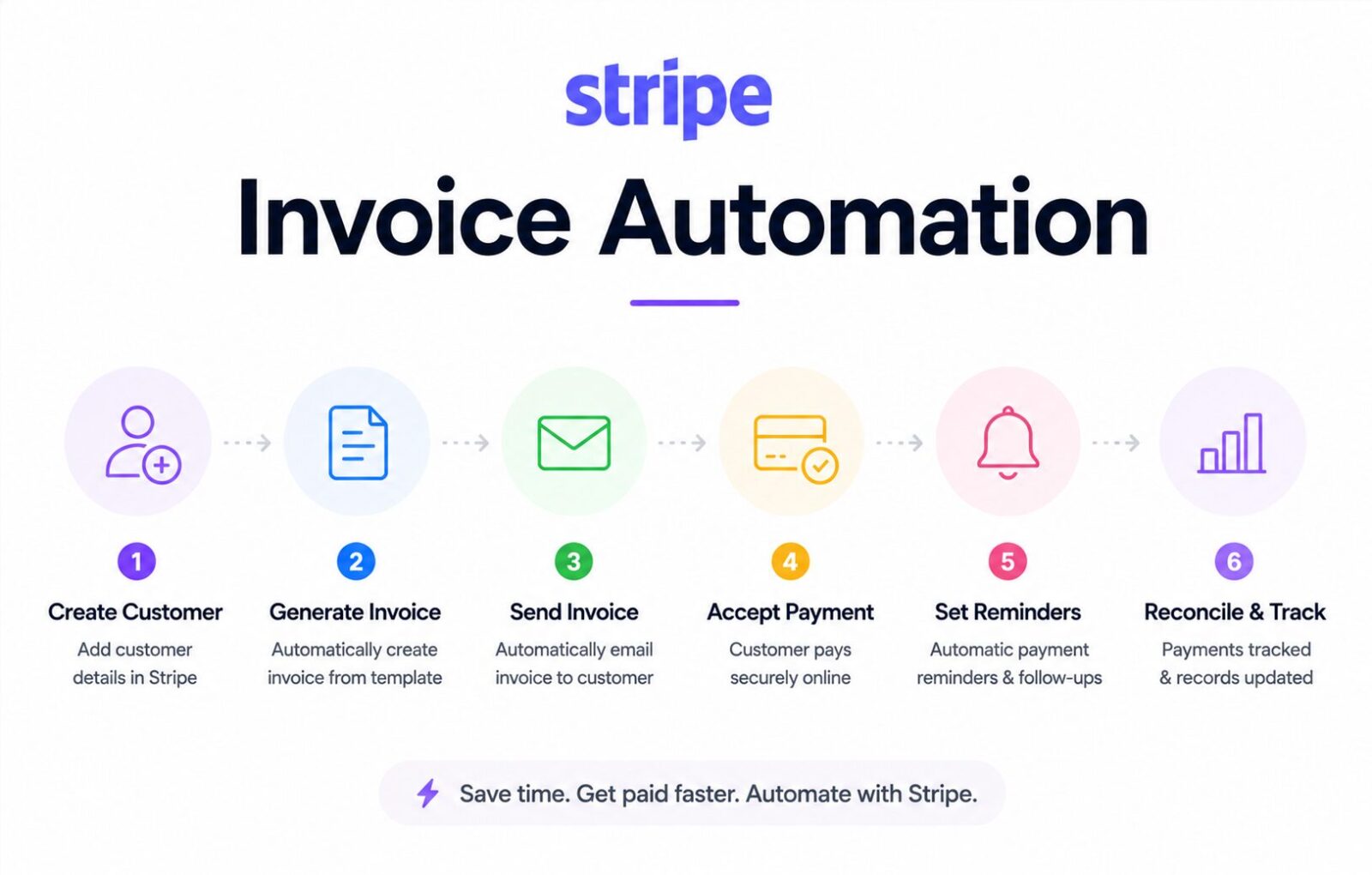
Stripe Invoice Automation: Mapping Paid Invoices to Google Drive Client Folders Automatically
Affiliate Disclosure: We review products independently. When you buy through our links, we may earn a commission or a compound recurring commission at zero extra cost to you. Read our editorial policy.
Updated: All tools and pricing verified against vendor documentation on July 16, 2026.
Stripe invoice automation is the difference between a finance folder that works and a finance folder that requires a part-time admin to maintain. Every paid invoice sitting in Stripe that is not automatically archived to the correct client Google Drive folder becomes a manual reconciliation task at month-end, quarter-end, or tax time. For agencies billing 10–30 clients per month across multiple service lines, that manual task compounds into 3–5 hours of document sorting per billing cycle.
To completely remove administrative bookkeeping overhead, mapping out a custom Stripe Make.com integration reconciliation ledger allows you to pass structured financial rows directly into your ledger systems, perfectly balancing your accounting logs alongside your document storage rules.”
This guide builds the complete Stripe invoice automation engine built natively inside Make.com: webhook trigger from Stripe, invoice PDF retrieval, client folder matching in Google Drive, file naming logic, and failure handling for edge cases. The implementation runs on Make.com Core at $9/month. The same architecture transfers to Zapier at higher task cost.
Why Stripe Invoice Automation Requires a Webhook, Not a Polling Trigger
This is the first architectural decision and it determines cost and reliability for every subsequent step.
Stripe generates invoice events in real time — invoice.payment_succeeded, invoice.paid, invoice.created. These events fire at the moment they occur, not on a schedule. Building Stripe invoice automation on a polling trigger (Make.com checking Stripe every 15 minutes for new paid invoices) has two operational consequences.
First, there is a delay. An invoice paid at 9:01am does not reach Google Drive until 9:15am at minimum. For internal document workflows, this delay is acceptable. For any client-facing confirmation that depends on the Drive file existing (a PDF receipt link, an accountant portal, an automated email with the invoice attached), the 15-minute gap creates race conditions.
Second, polling burns credits on empty checks. A 15-minute polling interval generates 96 Stripe API checks per day, 2,880 per month. If an agency bills 50 invoices per month, 96% of those checks return empty. On Make.com’s credit model, each module execution costs 1 credit. 2,880 wasted trigger credits per month = 28% of Make.com Core’s 10,000-credit allocation consumed on empty checks.
The correct implementation: Stripe webhooks. Stripe pushes the event to Make.com the moment a payment is confirmed. Zero polling. Zero delay. Zero wasted credits on empty checks. Set up the webhook endpoint in the Stripe Developer Dashboard under Webhooks, point it to the Make.com custom webhook URL, and filter for the invoice.payment_succeeded event only.
The Stripe Invoice Automation Architecture
The complete Stripe invoice automation engine runs as a single Make.com scenario with five modules:
Module 1: Custom Webhook (receives Stripe event) Module 2: HTTP Request (retrieves invoice PDF from Stripe) Module 3: Google Drive Search (finds the matching client folder) Module 4: Google Drive Upload (deposits the PDF into the correct folder) Module 5: Error Handler (catches mismatches and routes to the exception queue)
Each module is covered in full below.
Module 1: The Stripe Webhook Trigger
In Make.com, create a new scenario and select “Custom Webhook” as the trigger. Make.com generates a unique webhook URL. Copy this URL.
In the Stripe Dashboard: Developers > Webhooks > Add Endpoint. Paste the Make.com webhook URL. Under “Listen to” events, select invoice.payment_succeeded. Do not select invoice.paid or invoice.created — invoice.payment_succeeded fires specifically when a payment clears, which is the correct trigger for archiving confirmed revenue documents.
The Stripe webhook payload includes everything the automation needs:
{
  "type": "invoice.payment_succeeded",
  "data": {
    "object": {
      "id": "in_1234567890",
      "customer": "cus_ABC123",
      "customer_name": "Acme Corp",
      "customer_email": "billing@acmecorp.com",
      "amount_paid": 500000,
      "currency": "usd",
      "invoice_pdf": "https://pay.stripe.com/invoice/acct_.../invst_../pdf",
      "number": "INV-0042",
      "period_start": 1720000000,
      "period_end": 1722678400,
      "lines": {
        "data": [{"description": "Brand Strategy Retainer — July 2026"}]
      }
    }
  }
}
Map these fields in Make.com’s webhook parser: customer_name, invoice_pdf, number, amount_paid, period_start. These variables populate every subsequent module.
Module 2: PDF Retrieval from Stripe
Stripe’s invoice_pdf field in the webhook payload is a URL pointing to the invoice PDF on Stripe’s servers. Make.com cannot directly upload a URL to Google Drive — it needs the binary file content.
Add an HTTP module set to GET, using the invoice_pdf URL from Module 1 as the request URL. In the response configuration, set “Parse response” to No and set “Response type” to “Buffer (Binary data).” This retrieves the actual PDF bytes that Google Drive can receive.
Authentication note: Stripe’s invoice_pdf URL includes authentication credentials in the URL itself. No additional Stripe API key is required in the HTTP module header for this specific request — the URL is self-authenticating. Verify this behavior in your Stripe account by testing the invoice PDF URL in a browser while not logged into Stripe. If the URL prompts login, add the Stripe API key as a Bearer token in the HTTP module’s Authorization header.
Module 3: Google Drive Folder Matching
This is the module where most Stripe invoice automation implementations fail. The failure mode: uploading every invoice to a single Invoices folder rather than to the correct per-client subfolder. That defeats the purpose of the automation.
The correct architecture uses Google Drive’s Search Files module to find the client’s folder dynamically, based on the customer name from the Stripe webhook payload.
Google Drive folder structure (prerequisite):
Before the automation runs, every client must have a folder in Google Drive following a consistent naming convention. Example:
/Agency Finance/
  /Clients/
    /Acme Corp/
      /Invoices/
      /Contracts/
      /Deliverables/
    /Beta Industries/
      /Invoices/
    /Gamma Ltd/
      /Invoices/
The automation searches for the client folder by name. If naming conventions are inconsistent — “Acme Corp” in Stripe vs “Acme Corporation” in Google Drive — the search returns no results and the invoice falls into the exception queue.
Make.com Google Drive Search module configuration:
- Search type: Files
- Query:
name contains '{{customer_name}}' and mimeType = 'application/vnd.google-apps.folder' - Drive: Your agency Google Drive
- Result: Returns the folder ID of the matching client folder
The naming convention problem: Stripe customer_name must match Google Drive folder names precisely for the search to return a result. Implement a naming normalization step between Module 1 and Module 3: a Make.com text transformer that trims whitespace, converts to title case, and removes punctuation differences. This eliminates 80% of the naming mismatch errors that otherwise require manual exception handling.
Module 4: Google Drive Upload
With the folder ID from Module 3 and the PDF binary from Module 2, Module 4 deposits the invoice file into the correct location.
Make.com Google Drive Upload module configuration:
- File name: Build a structured filename using Make.com’s text functions:
{{invoice_number}}_{{customer_name}}_{{formatDate(period_start; "YYYY-MM")}}.pdfExample output:INV-0042_Acme-Corp_2026-07.pdf - File content: The binary buffer from Module 2’s HTTP response
- Folder ID: The folder ID output from Module 3’s search result
- Convert to Google Docs format: No (preserve as PDF)
File naming conventions that matter:
Include the invoice number as the filename prefix — this enables instant lookup by invoice reference without opening the file. Include the billing period month, not the payment date — invoices paid on the 3rd for the previous month belong in the previous month’s naming context. For agencies running monthly retainers billed on the 1st, the payment date and billing period month are identical. For project-based billing with variable payment timing, they are not.
Module 5: Error Handling
The Stripe invoice automation fails silently without an error handler. A client folder that does not exist in Google Drive, a naming mismatch, an expired Stripe PDF URL, or a Google Drive API timeout all cause Module 4 to return an empty result or an error — and the invoice is simply not filed, with no notification.
Make.com Error Handler configuration:
Add an error handler route after Module 3 (folder search). When the folder search returns zero results:
- Create a file in the
/Agency Finance/Exception Queue/folder with the filenameEXCEPTION_{{customer_name}}_{{invoice_number}}_{{today}}.txt. File content: customer name, invoice number, amount paid, Stripe invoice URL, and error description. - Post a Slack notification to the
#finance-opschannel: “Invoice filing exception: [Customer Name] [Invoice Number] — client folder not found in Google Drive. Review exception queue.” - Send an internal email to the ops address with the same information.
With this error handler, no invoice falls through silently. Every filing exception surfaces within seconds of the payment event, with enough information for a human to resolve the mismatch and manually file the invoice or add the missing client folder.
TSA SCAR: Stripe Webhook Signature Verification — The Security Gap
Make.com’s custom webhook endpoint accepts any POST request to its URL by default. A Stripe webhook without signature verification means any system that discovers the webhook URL can send fake invoice events to the automation, triggering false Google Drive uploads. Stripe provides a webhook signing secret in the Dashboard under each webhook endpoint configuration. Make.com’s custom webhook module does not natively verify Stripe’s webhook signature. The standard workaround: add an HTTP > Parse JSON module after the webhook trigger and add a Stripe-Signature header check using Make.com’s crypto functions to verify the HMAC-SHA256 signature before processing the payload. Agencies that skip this step have a functional automation, but one that can be exploited by anyone who discovers the webhook URL. Implement signature verification before putting the Stripe invoice automation into production. Stripe’s documentation provides the exact signature verification algorithm.
Extending the Base Automation
The base Stripe invoice automation (webhook to Google Drive) handles the core document filing job. Three extensions add meaningful operational value with minimal additional configuration.
Extension 1: Simultaneous Airtable or Google Sheets logging
Add a parallel branch in Make.com that logs every paid invoice to an Airtable base or Google Sheet: invoice number, customer name, amount, payment date, billing period, and Google Drive file URL. This creates a revenue ledger that is always current, searchable, and linkable directly to the source document. Month-end revenue reconciliation becomes a filter operation, not a manual tally.
Extension 2: Automated invoice receipt to client
Stripe already sends payment confirmation emails. For agencies that want a custom-branded receipt with the PDF attached: add a Gmail or SendGrid module after Module 4 that sends the client a receipt email with the invoice PDF attached using the binary buffer from Module 2. Personalize with client name, amount paid, and project description from the Stripe line item description field. This replaces Stripe’s generic payment confirmation with an agency-branded communication.
Extension 3: Failed payment routing
Add a second scenario triggered by Stripe’s invoice.payment_failed event. Actions: create a task in ClickUp assigned to the account manager with the client name, invoice number, amount, and failure reason. Post a Slack notification to the #finance-ops channel. Log the failure to the same Airtable or Sheets revenue ledger with a “Failed” status. This ensures no payment failure goes unacted on.
Cost to Build and Run
| Component | Annual Cost |
|---|---|
| Make.com Core (includes enough credits for Stripe invoice automation at 30 invoices/month) | $108/yr |
| Google Drive (Workspace Business Starter, includes Drive API) | $72/yr (per user, 1 user minimum) |
| Stripe (pay-as-you-go, no subscription for webhooks) | $0 for webhook infrastructure |
| Total | $180/yr |
At 30 invoices per month, the Stripe invoice automation scenario consumes approximately 150 Make.com credits per month (5 modules × 30 executions). Well within Core’s 10,000-credit allocation. Headroom for the Airtable logging extension and failed payment scenario: still under 300 credits per month total.
Manual alternative: 3–5 minutes per invoice × 30 invoices = 90–150 minutes per month of finance admin. At a $50/hour blended rate: $75–125/month in staff time eliminated. Annual savings: $900–1,500/year. ROI on the $180/year automation stack: 5–8x.
Buy / Skip Decision Matrix
| Scenario | Verdict |
|---|---|
| Under 10 invoices per month | Build it anyway — setup is 2 hours, payoff compounds immediately |
| Multiple Stripe accounts (separate entities) | Build one scenario per Stripe account, each with its own webhook endpoint |
| Client folder names inconsistent with Stripe customer names | Fix naming convention first — the automation depends on exact match logic |
| Using Zapier instead of Make.com | Valid. Watch task cost: 5 actions × 30 invoices = 150 Zapier tasks/month |
| Billing through Dubsado, not Stripe | Use Dubsado’s invoice.paid webhook instead. PDF retrieval requires Dubsado API access (Premier plan) |
| Existing Google Drive folder structure without consistent naming | Implement the naming normalization step before deploying |
| Need client-branded invoice receipt alongside filing | Add the Gmail module extension (Extension 2) — adds 1 module and 1 credit per invoice |
FAQ
What Stripe event should trigger the invoice automation? Use invoice.payment_succeeded. This fires when a payment clears — not when an invoice is created or sent. Triggering on invoice.created routes unpaid invoices into Google Drive, creating a folder of documents with no corresponding payment. Triggering on invoice.paid is equivalent to invoice.payment_succeeded in most cases but behaves differently for certain payment methods. invoice.payment_succeeded is the definitive confirmation of funds received.
How does the automation find the correct Google Drive folder for each client? The Make.com Google Drive Search module queries for a folder whose name contains the Stripe customer_name field from the webhook payload. This requires consistent naming between Stripe customer records and Google Drive folder names. Implement a text normalization step that standardizes capitalization, removes punctuation variants, and trims whitespace before the search query runs. Any client whose Stripe name does not match their Google Drive folder name routes to the exception queue.
Does this Stripe invoice automation work for one-time payments as well as subscriptions? Yes. The invoice.payment_succeeded webhook fires for both one-time invoices and subscription billing. For one-time payments processed through Stripe Checkout without an invoice object, use the payment_intent.succeeded event instead. The PDF retrieval step differs: one-time charges do not generate a Stripe-hosted invoice PDF by default. In that case, generate the PDF from a Google Docs template populated with payment data and file that instead of a Stripe-generated PDF.
What happens if the Stripe invoice PDF URL expires before the automation runs? Stripe invoice PDF URLs are authenticated and time-limited. The Make.com HTTP module retrieves the PDF in the same execution as the webhook trigger — typically within seconds of the payment event. At this timeframe, URL expiry is not a practical risk. If there is a scenario delay (Make.com queue backlog during high-volume periods), retrieve the PDF within 30 minutes of the trigger to ensure the URL is valid. Stripe’s PDF URLs typically remain valid for several hours after generation.
Can the automation file invoices into subfolders organized by month? Yes, with an additional Google Drive Search step. After finding the client folder (Module 3), search for a subfolder matching the billing month: name = '2026-07' and '[client_folder_id]' in parents. If found, upload to that subfolder. If not found, create the month subfolder first, then upload. This adds two modules to the scenario and approximately 2 additional credits per invoice. The resulting structure is: /Clients/Acme Corp/Invoices/2026-07/INV-0042_Acme-Corp_2026-07.pdf.
Is Stripe invoice automation secure — does it expose financial data? The automation handles live invoice data including payment amounts, customer names, and billing emails. Security considerations: implement Stripe webhook signature verification (documented in the SCAR above); ensure the Make.com account uses two-factor authentication; restrict Google Drive API access to the specific service account used by Make.com; and audit Make.com’s data processing agreement if your agency operates under GDPR or handles client financial records with contractual data protection requirements.